In the vast ecosystem of WordPress, where millions of users navigate through intuitive dashboards, block editors, and streamlined settings menus, there remains a shadow feature that has persisted since the platform’s early days. It is a page that is neither linked in the sidebar nor documented in the standard user manual. To access it, one must manually append a specific string to their site’s URL: /wp-admin/options.php.
This "hidden" page, often referred to as the "all settings" page, provides an unvarnished, raw, and potentially hazardous look into the heart of a WordPress database. For seasoned developers, it is a convenient, albeit dangerous, shortcut. For the uninitiated, it represents a digital minefield.
The Main Facts: What is options.php?
At its core, the options.php page is a direct, editable representation of a site’s wp_options table. In a standard WordPress installation, this table is the brain of the website. It stores everything from the site’s URL and administrator email address to plugin-specific configurations and theme preferences.
When a user navigates to /wp-admin/options.php while logged in as an administrator, they are presented with a simple two-column layout. The left column displays the key (the name of the database option), and the right column displays the corresponding value. There are no tooltips, no instructional text, and, most importantly, no "undo" button.
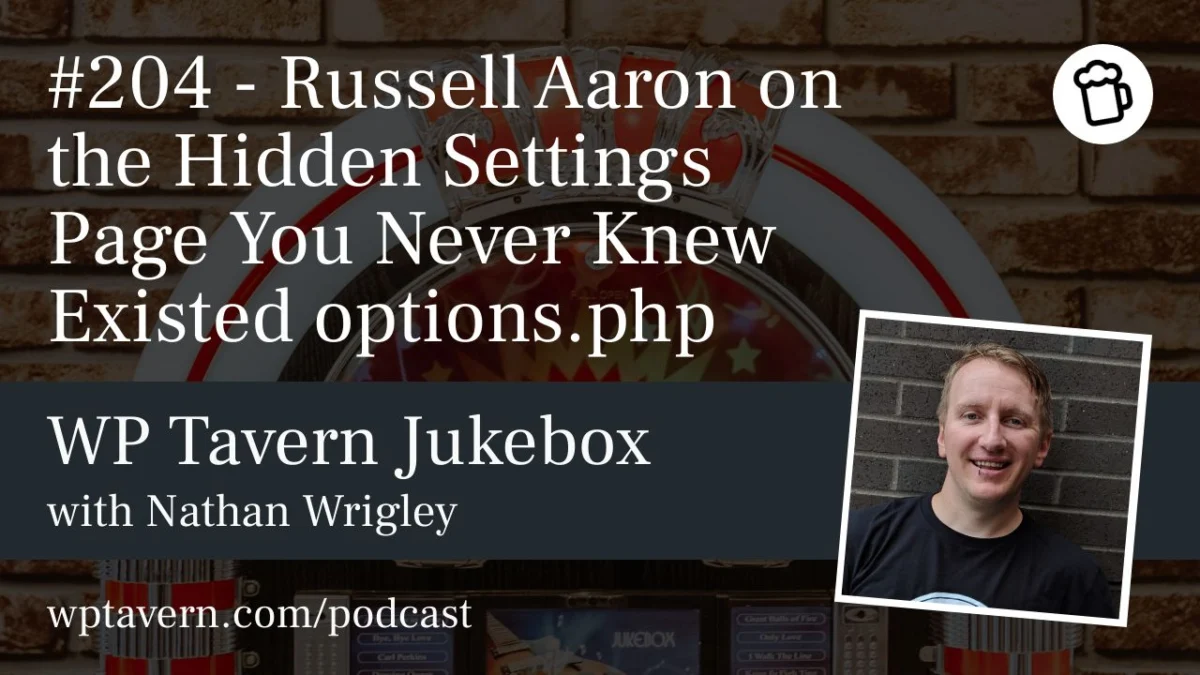
Russell Aaron, a longtime WordPress developer and contributor, describes the page as "the largest form in WordPress." It is essentially a massive, unfiltered HTML form that allows an administrator to modify virtually any setting within the database. While standard settings pages in the WordPress admin panel provide safety checks and validation, options.php offers no such guardrails.
A Brief Chronology: A Legacy Feature of the Web
The origins of options.php are somewhat shrouded in the mists of WordPress history. While exact version tracking is difficult due to the nature of early development, industry veterans like Aaron note that the feature has been present for at least two decades.
In the early 2000s, when WordPress was primarily a blogging tool, the administrative interface was far more primitive. Developers often needed quick ways to inspect the database without relying on external tools like phpMyAdmin. The options.php page likely served as a debug utility for the core team, providing a "quick and dirty" way to see what was actually being saved to the database.
As the platform evolved, the administrative interface became more user-friendly, moving settings into structured categories like "General," "Reading," and "Discussion." However, options.php was never removed. It remained a "ghost" feature—a remnant of a time when the developer was expected to understand the raw data structure of their blog. Today, it stands as a testament to the platform’s commitment to backward compatibility, even when that compatibility poses a risk to modern, less technical users.
Supporting Data: The Utility and the Risk
The utility of options.php is undeniable for developers performing site maintenance or plugin debugging. Aaron, who has focused his career on support and beginner advocacy, explains that he uses the page to verify whether his own plugins are cleaning up after themselves.
"When you deactivate a plugin, you have an uninstall.php file that should remove information from the database," Aaron explains. "I use options.php to check if my plugin is doing its job. If I’ve uninstalled the plugin and I still see the option key, I know my cleanup script failed."
However, this utility is balanced by extreme risk. The lack of input validation on this page means that a single typo or a misunderstood value can lead to catastrophic site failure. Because there is no "help" documentation associated with the keys, a user might see a value like fresh_site or finished_updating_comment_type and have no way of knowing what changing those values will trigger.
The Dangers of "Blind Editing"
The risks include:
- Site Lockout: Changing the
admin_emailorsiteurlincorrectly can instantly lock an administrator out of their own dashboard. - Data Corruption: Modifying serialized data (complex arrays stored as strings) without proper formatting will break the data, potentially causing site-wide errors.
- Plugin Instability: Manually altering plugin activation statuses (
active_plugins) can cause conflicts that crash the front end.
The Perspective of the WordPress Community
The existence of options.php sparks a perennial debate within the community: Should it stay, or should it go?
Some argue that in the interest of security and user safety, such an exposed "backdoor" should be removed or restricted behind a more deliberate, developer-focused flag. Others, including Aaron, feel that while it is dangerous, it is a vital tool for those who know how to use it.
"It’s one of those things where, if you know, you know," says Aaron. He notes that the page is protected by the manage_options permission, meaning only users with full administrator access can reach it. In theory, if you have given someone administrator access to your site, you have already granted them the keys to the kingdom; the existence of options.php is arguably a secondary concern compared to the risk of a compromised admin account.
Furthermore, the page is not easily discoverable. It is not listed in any menu, and there is no UI hint of its existence. It relies on "security through obscurity," which, while not a best practice in modern software, has successfully kept the page from becoming a primary target for malware or automated attacks.
Implications for Future Development
As WordPress continues to shift toward a block-based, full-site editing experience (FSE), the gap between the average user and the underlying database is widening. The "hidden" nature of options.php highlights the disconnect between the platform’s legacy foundations and its modern, user-friendly facade.
Should it be Modernized?
If the WordPress core team were to address options.php today, there are several paths they could take:
- Documentation: Adding descriptions to the most common options would make the page a useful learning tool for developers.
- Search/Filter: Implementing a search function would make it a more practical tool for troubleshooting.
- Read-Only Mode: A toggle that allows users to view the database safely without the ability to edit would solve the risk of accidental breakage.
However, the consensus among many contributors is that the page should likely be left alone. Its obscurity is its greatest protection. By not calling attention to it, WordPress prevents the vast majority of users from stumbling into trouble.
Conclusion: A Tool for the Curious
For the WordPress power user, options.php is a window into the machine. It offers a glimpse of how the CMS tracks everything from the number of comments to the status of automatic updates. For the developer, it is a quick, accessible database manager that saves time during local development and plugin testing.
But for the average site owner, it serves as a stern reminder of the complexity beneath the surface. It is a "look but don’t touch" feature that underscores a fundamental truth about WordPress: it is a powerful, flexible, and sometimes messy tool.
If you are a curious user, exploring options.php can be an enlightening experience. It will show you exactly what is happening in your database and perhaps reveal why certain plugins behave the way they do. But before you press "Save Changes," heed the warning displayed at the top of the page: "You can break things here." Always maintain a recent backup, and remember that when it comes to the hidden corners of your WordPress installation, curiosity should always be tempered with caution.